Johku Pro and Johku Max Available now
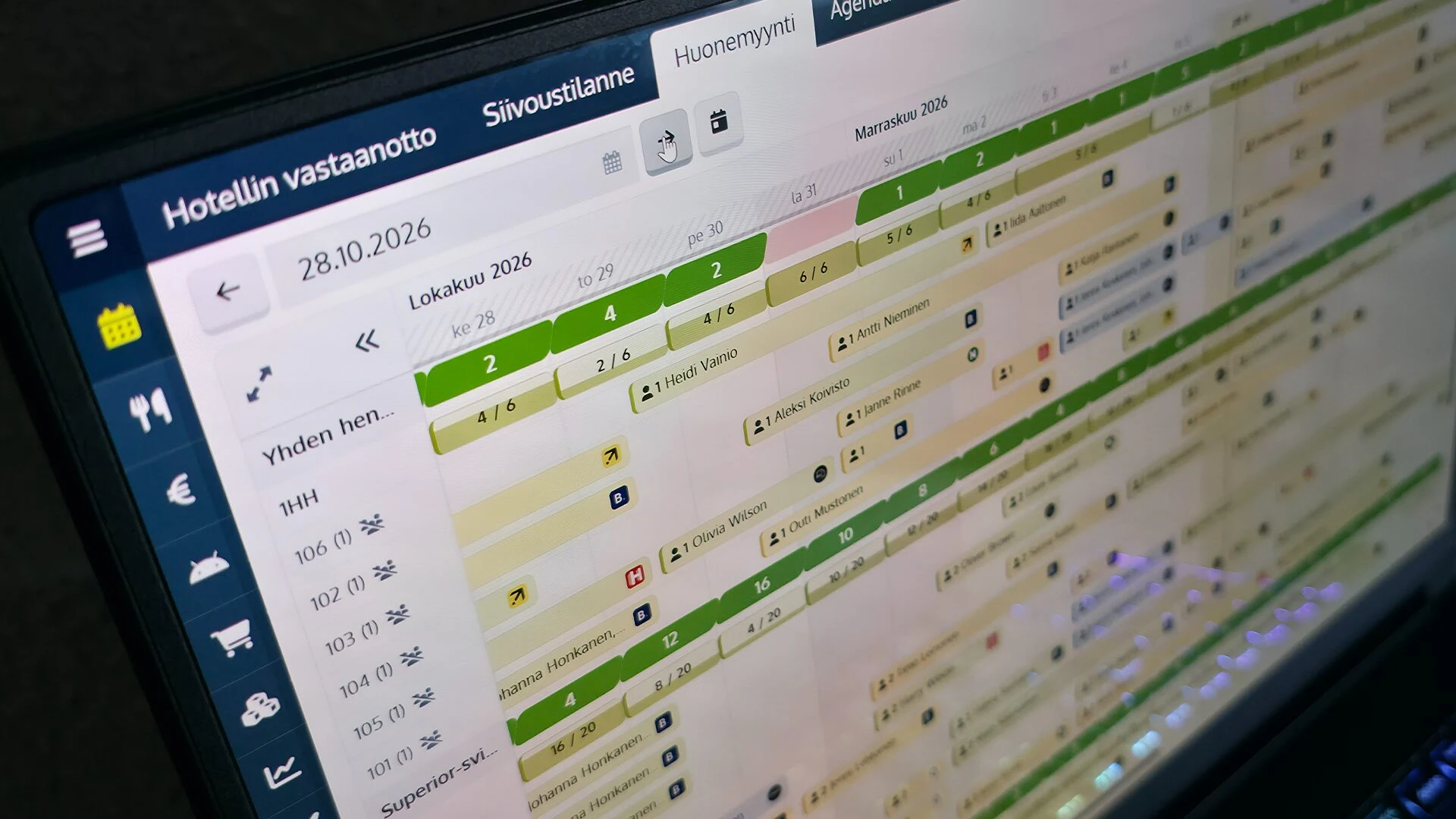
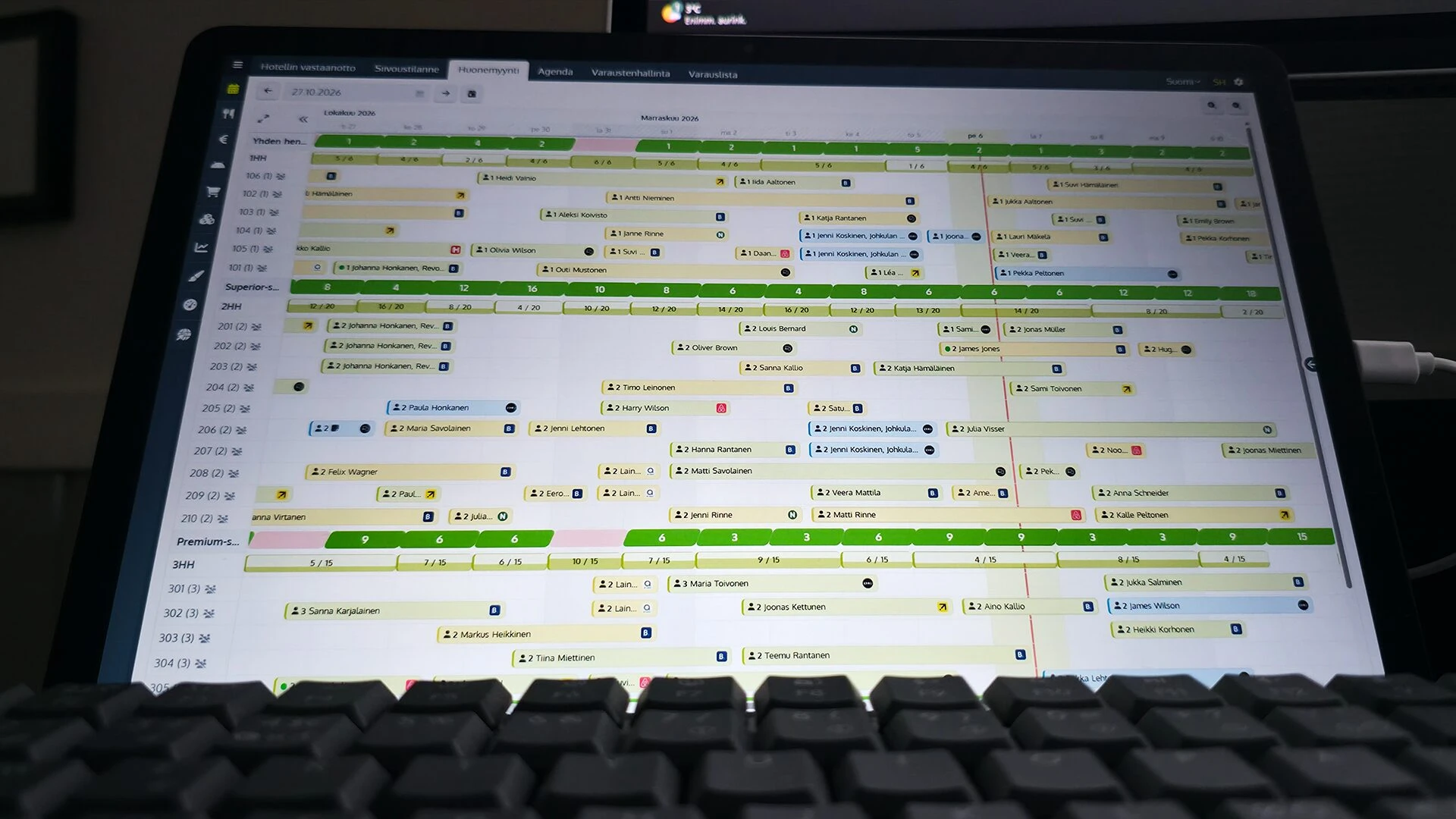
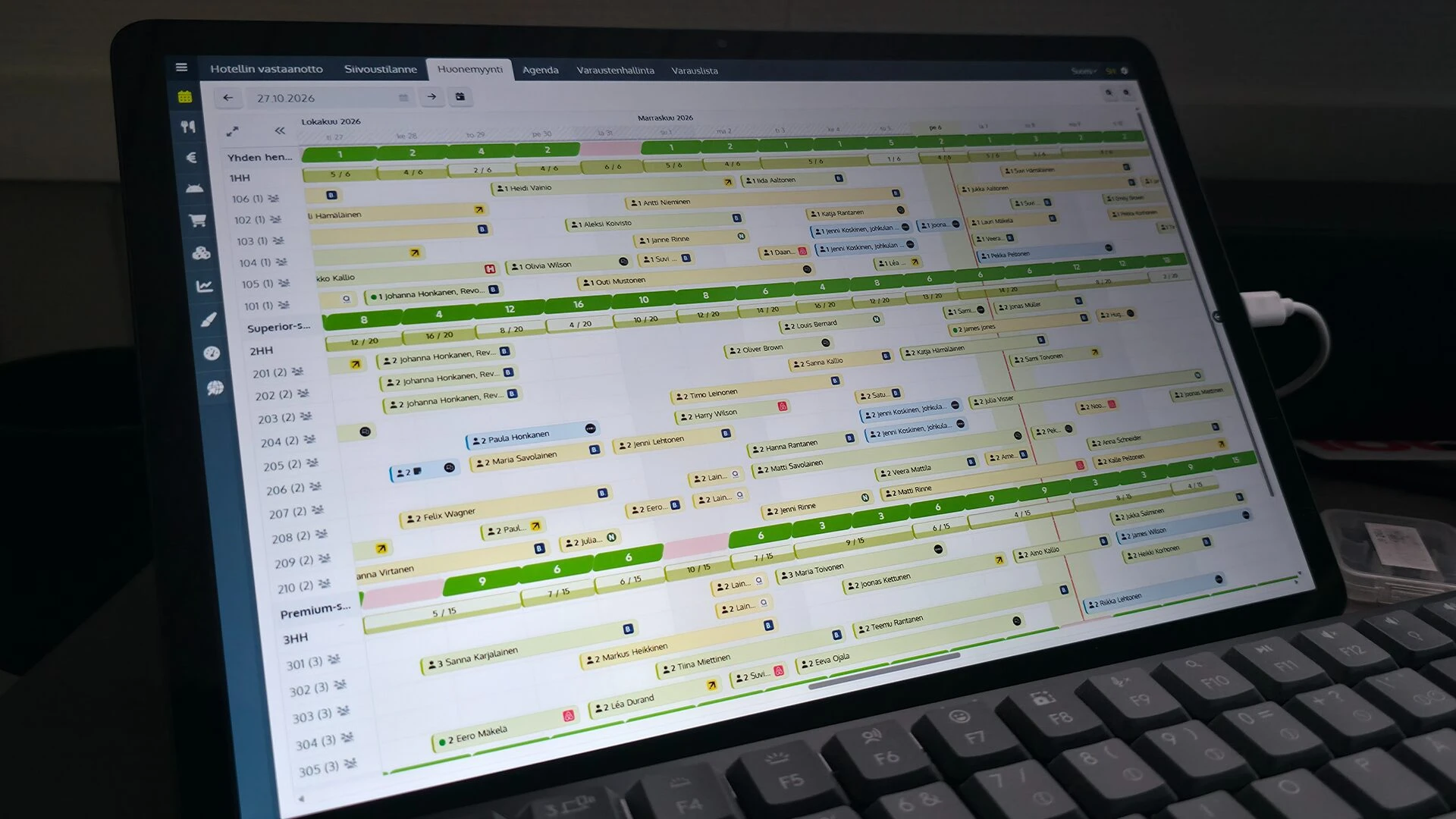
At the start of the day you want to know who is arriving, where each booking came from and how much is still left to sell. The Reservations timeline in Johku is completely redesigned. It shows bookings room by room or cottage by cottage, for example, and every booking bar shows the head count, sales channel and check-in status, among other things. When you need more, you open the booking and from there the whole order.
A completely redesigned timeline
The new timeline shows far more than the old one. Each booking bar carries the sales channel, head count, the booker's name and the check-in status, for example. Every departure of an hourly product shows its availability in color as well as in exact numbers. Zoom runs from an hour and a half to two months. The compact view shows the whole situation at once, and the roomier view makes space on the bars for more detail. The timeline also runs smoothly on a phone.
Everything that matters, on the bars and rows
The booking bar tells you who and from where
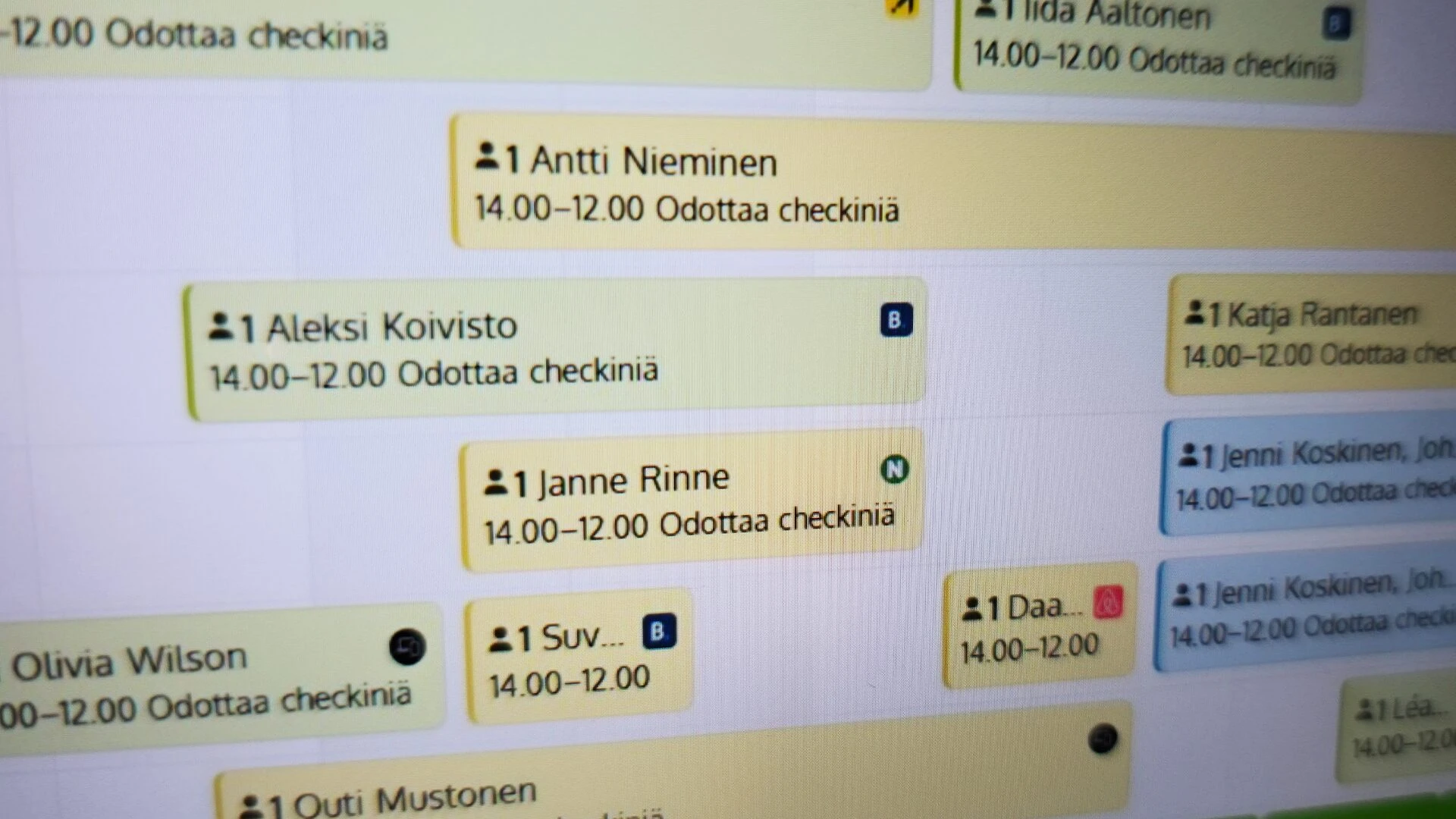
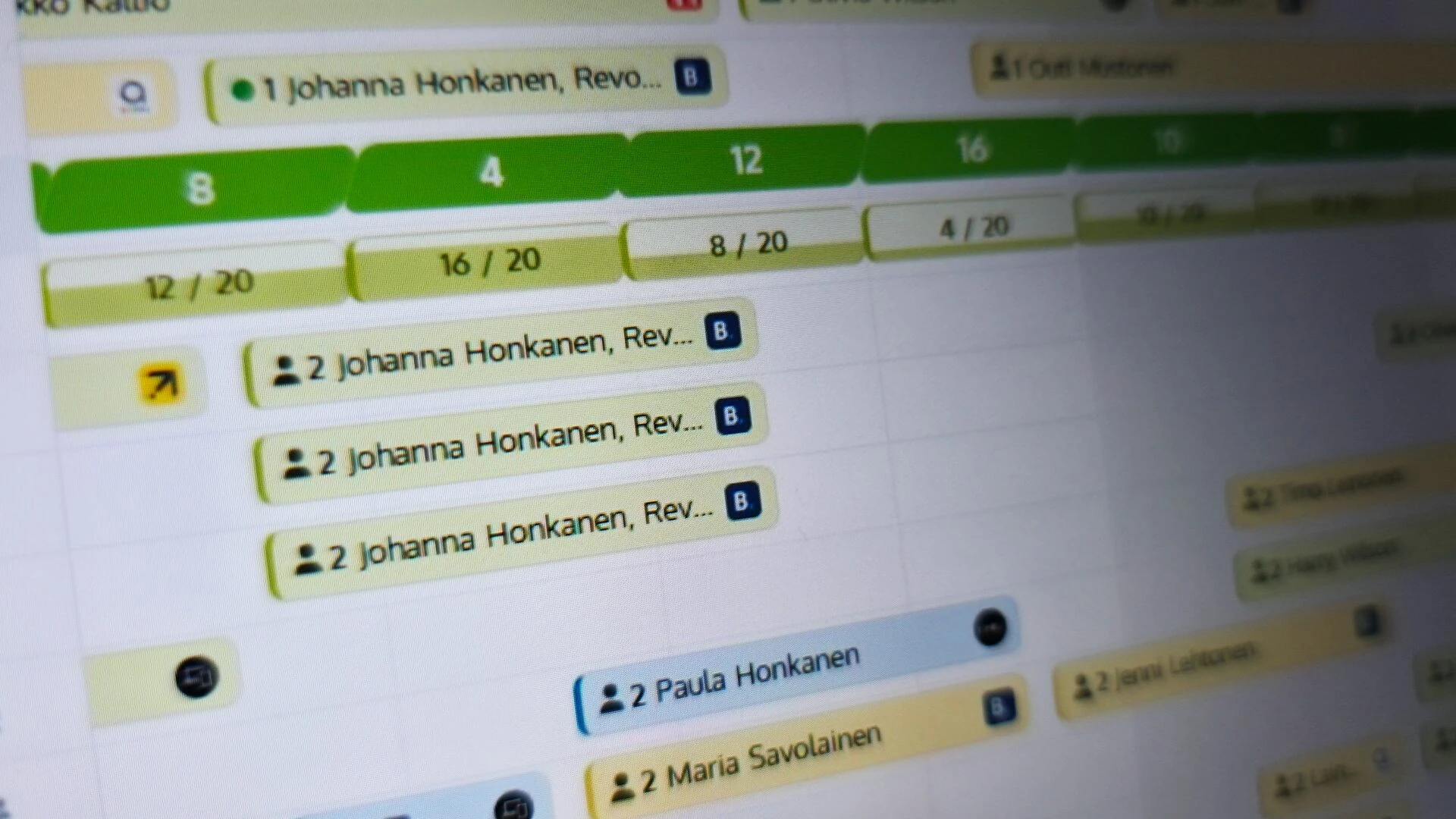
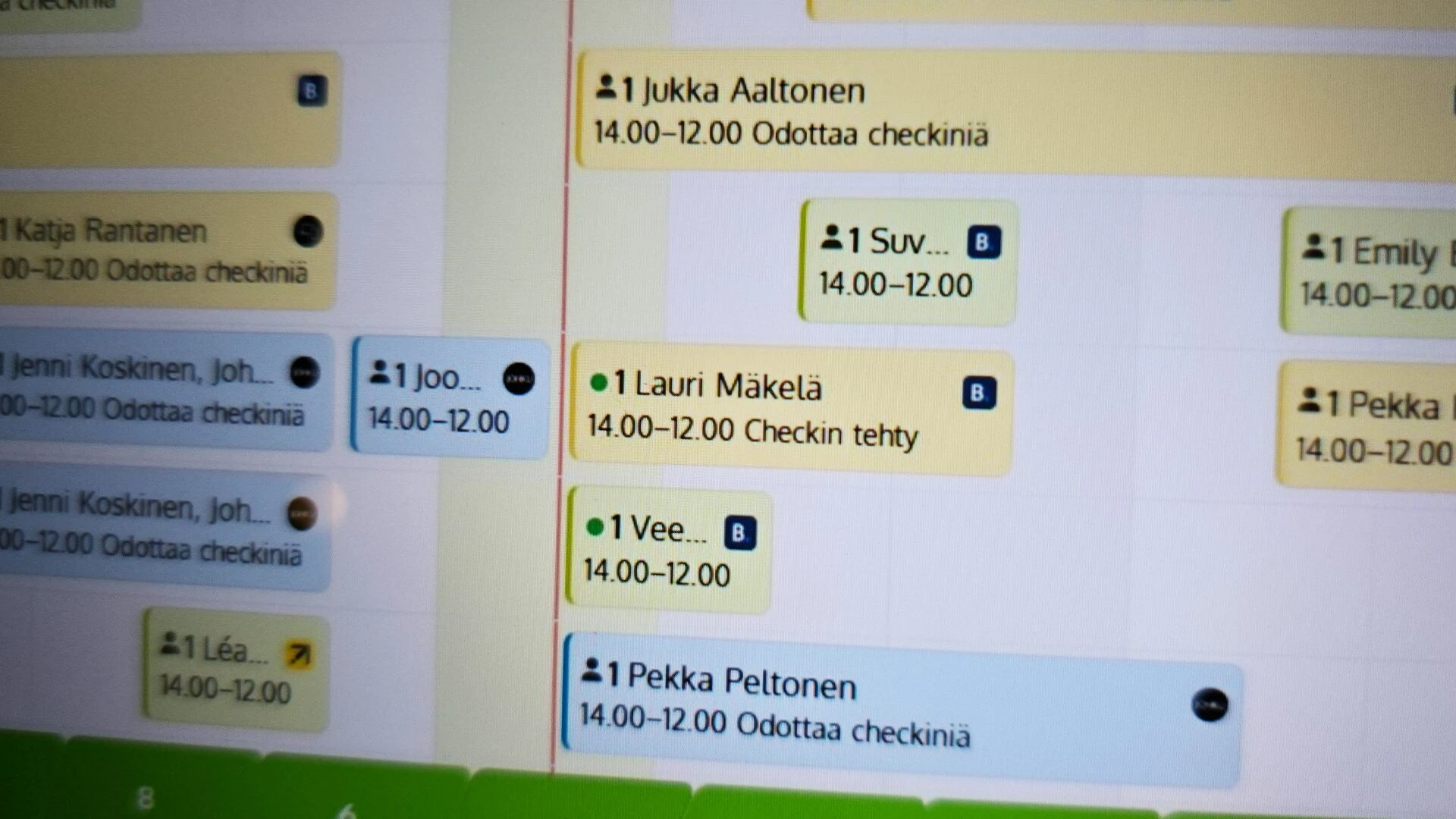
When a booking is on the timeline, its bar shows the head count, the customer's name if there is room, and an icon telling you whether it came from your storefront, the Johku POS or admin, Booking.com, Airbnb or another channel. The bar's color shows the payment status of the order.
What is left to sell, row by row
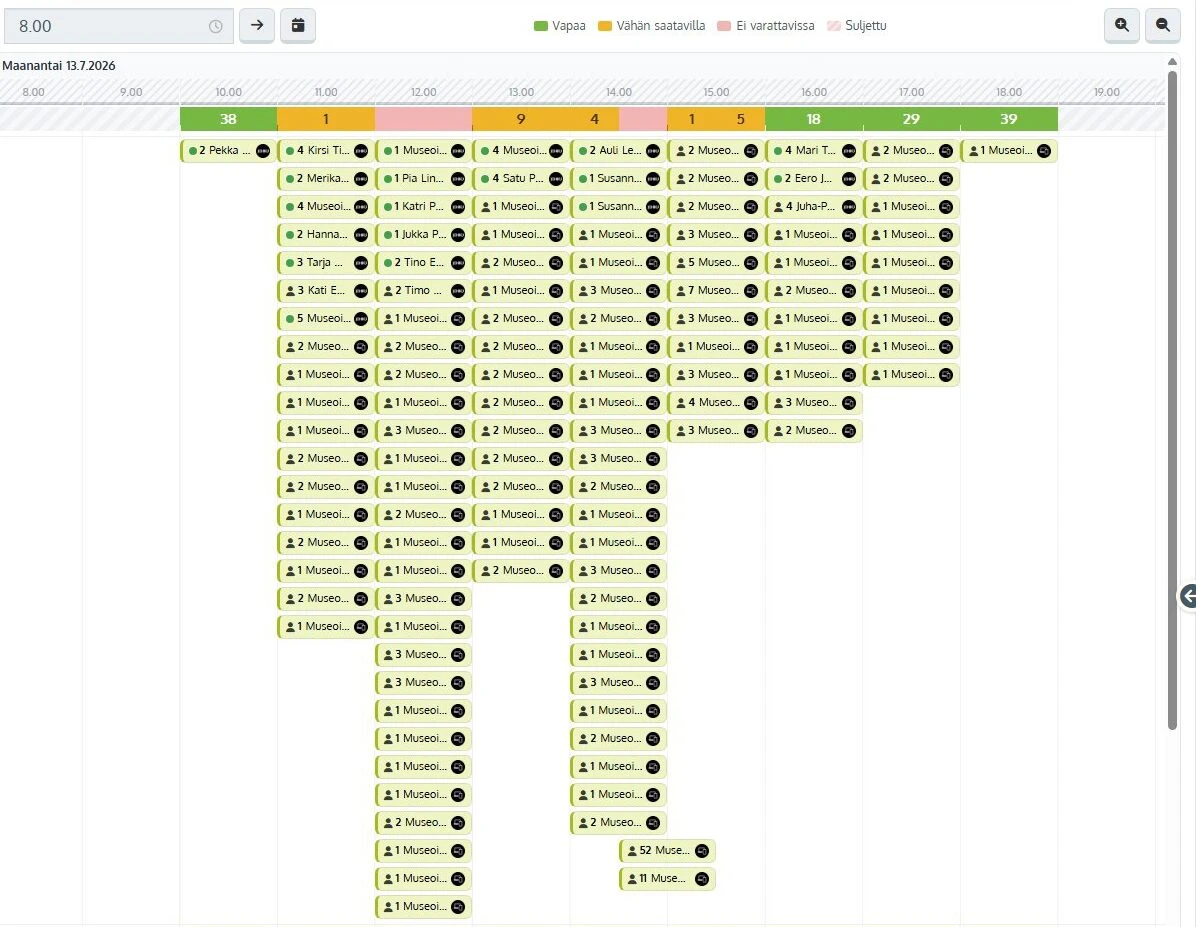
The product row shows how much is still available to sell, and the resource pool row how many of its resources are booked, for example 4 / 6. For products booked by the hour, such as guided museum tours, each departure shows its status in color: available, low availability, not bookable or closed. Availability counts bookings from every sales channel.
Two clicks to the full details
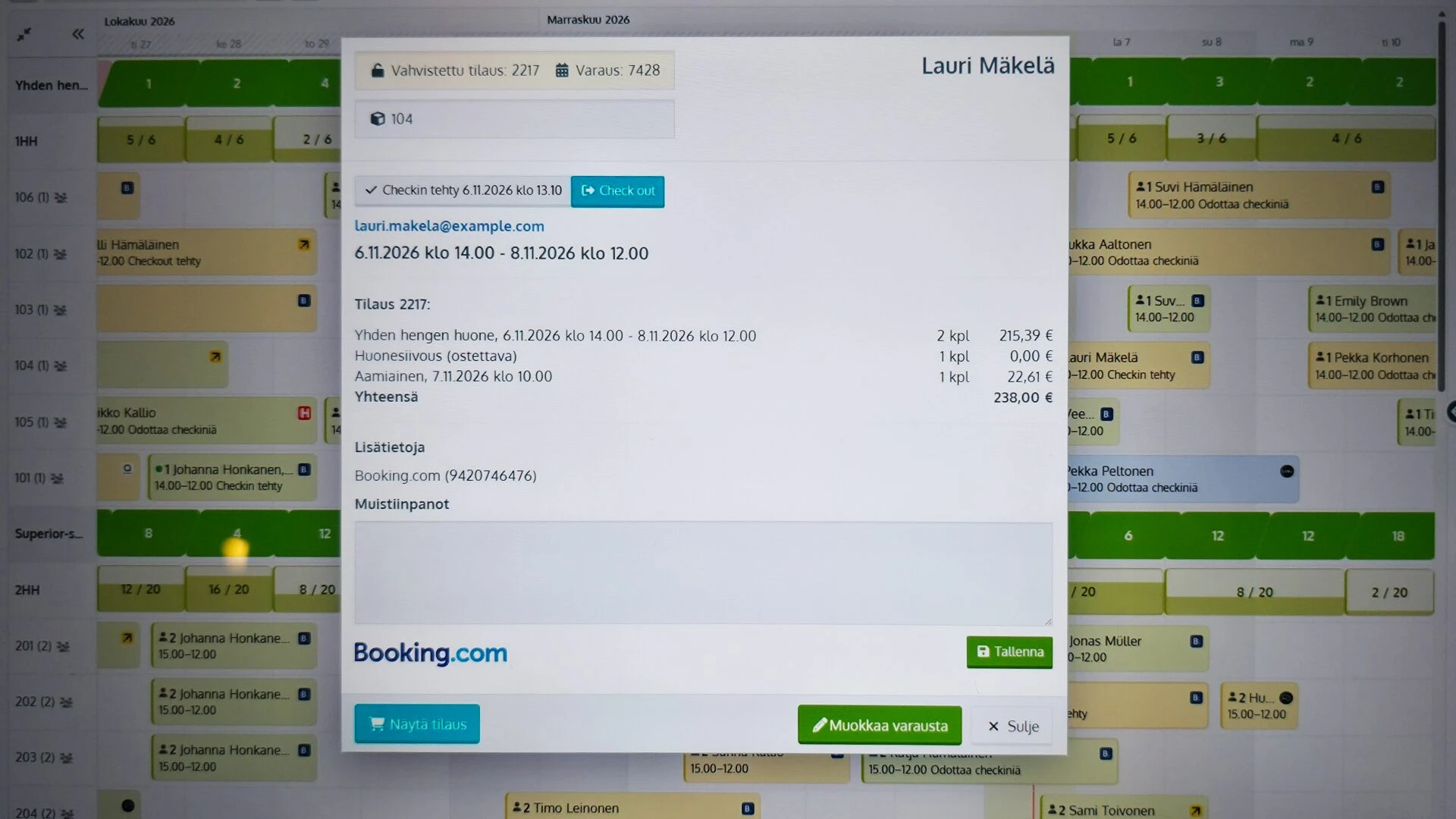
When you click a booking bar, you see the key details and can check the guest in or out. Show order opens the order with all its details. When a booking changes rooms, you drag the bar onto the new room's row and confirm the move.
Good to know
You choose per timeline whether check-in status is shown. By default it shows on bookings with customer details and never on maintenance bookings.
When you stretch a booking on a single room or another resource that is not shared, it stops at the next booking or block.
Moving a booking to another room or extending it does not change the price of the order.
Examples
Hotel. Say a hotel sells single rooms in its own online shop, on Booking.com and on Airbnb. In the daily view the room type's row reads 4 / 6, meaning four of six rooms are booked, and the green bar on the product row shows how many rooms are still for sale. The bar for room 105 shows the Booking.com icon and the text Waiting for check-in. When the guest arrives, you click the bar and check them in, and if they want another room, you drag the bar onto room 103's row.
Museum. Say a museum sells guided tours on the hour, online and at the till. In the hourly view, the 10:00 tour's bar is green and reads 38, while the 11:00 bar is orange with one place left. When you click a booking on the 11:00 tour, you see the group size, the buyer and the sales channel, and Show order opens the whole order.
Availability
Products and industries: bookable products and resources, all industries
Price: included in Johku
Getting started
The Reservations timeline is on in every Johku shop, and your shop's existing timelines show in it with no setup. An administrator creates new timelines in the Johku admin settings. The guide is in Johku Support: The Reservations timeline (in Finnish).
Read more
Questions about the booking timeline?
In Johku Pro, support answers at tuki@johku.com on weekdays 9:00–16:00 Finnish time. In Johku Max, a dedicated specialist (Merchant Success operator) helps you.